bolt Executive Summary: Napkin AI at a Glance
- ✓ Human-in-the-Loop Workflow: Napkin AI asks what you're building, drafts an outline for you to approve, then builds slides one at a time.
- ✓ Dual Product Ecosystem: Use Napkin Slides for end-to-end presentation decks from scratch; use Napkin Visuals to transform dense paragraphs into scannable diagrams.
- ✓ Flexible Export: Free plan exports as PNG and PDF (watermarked); paid Plus tier unlocks native PowerPoint (.pptx) and vector SVG exports.
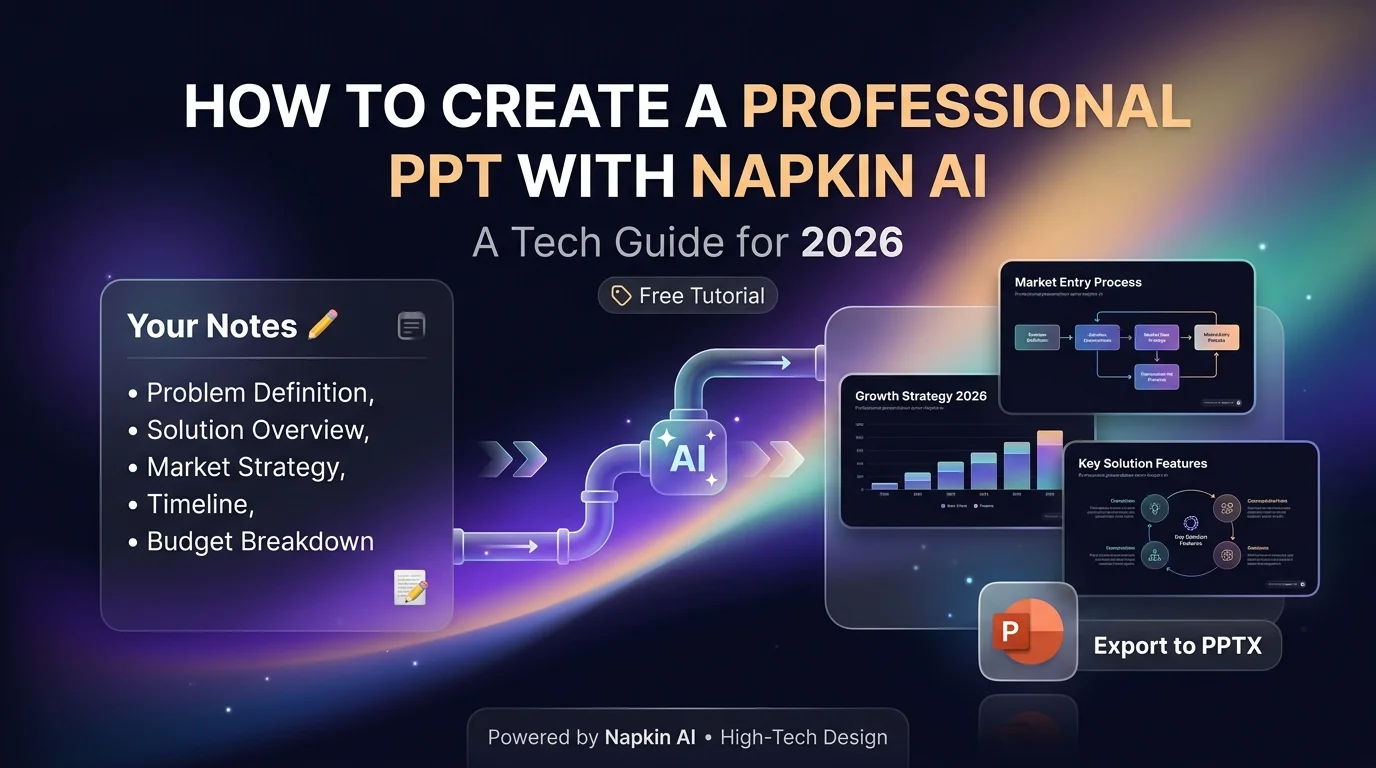
Most AI presentation tools hand you a generic deck in ten seconds. A Napkin AI presentation works differently: it asks what you're building, drafts an outline for you to approve, then builds the deck one slide at a time, so you stay in control of the story.
This guide covers Napkin Slides (the deck builder) and Napkin Visuals (the text-to-diagram tool). You'll go from a blank page to a professional PPT, even if you've never used an AI design tool.
What Is Napkin AI? Visuals vs Slides
Napkin AI actually ships two distinct products under one account, and knowing which one you need saves a lot of confusion.
Napkin Visuals
This is the original Napkin product: paste in a block of text and it converts it into a single editable diagram — a flowchart, comparison, timeline, process map, or mind map. It doesn’t build a deck; it builds the individual graphic you drop into a slide, document, or report you’re already working on.
Napkin Slides
Slides is the newer, full presentation builder. You describe what you’re working on, and Napkin asks a few clarifying questions about your goal and audience. It then builds a tailored outline for your approval before generating the complete deck slide by slide, with layout choices at each step rather than dumping a finished file on you.
Which one do you need? If you want one clean diagram to drop into an existing PowerPoint, use Napkin Visuals. If you want the whole presentation built from scratch, use Napkin Slides — then use Visuals to sharpen individual slides afterward.
Is Napkin AI Free? Pricing and Limits
Napkin’s free plan gives you 500 AI credits per week and lets you export Visuals graphics as PNG or PDF, though free exports carry a watermark. The paid Plus tier unlocks PowerPoint (PPTX) and SVG export for Visuals.
Napkin Slides is currently in beta and available on every plan, including free, at no extra cost — Napkin’s own help documentation confirms there’s no separate charge to use it while the team refines features based on user feedback.
| Plan | Visuals Export | Slides Access | Watermark |
|---|---|---|---|
| Free | PNG, PDF only | Full access (beta) | Yes |
| Plus (paid) | PNG, PDF, PPTX, SVG | Full access | No |
Step-by-Step: Build a Napkin AI Presentation with Napkin Slides
Follow this exact sequence to take your notes, document, or prompt from raw text into a polished presentation:
Step 1 — Create your account and start a new presentation
Go to napkin.ai/slides and sign in (or create a free account). Choose how you want to start: paste existing text, describe your idea from scratch, or upload a file such as a Word document, notes, or a PDF.
Step 2 — Answer Napkin’s clarifying questions
Instead of generating a deck instantly, Napkin asks a few questions about your topic, audience, and goal. Answer these with real specifics — “investor pitch for a 10-person seed round” produces a far more useful outline than “business presentation.”
Step 3 — Review and edit the outline before anything is built
Napkin builds a tailored outline first and waits for your approval. This is the best point to reorder sections, cut anything irrelevant, or add a section it missed — fixing structure here is much faster than fixing it slide by slide later.
Step 4 — Pick a brand style
Before building the deck, Napkin shows a handful of style options based on your content. Pick the closest match now; you can still customize colors and fonts individually later.
Step 5 — Build the deck slide by slide
Napkin generates one slide at a time and offers a few layout options for each. Hover to preview, click to select — or use “Pick for me” on individual slides, or “Pick the rest for me” to let Napkin finish the remaining slides automatically.
Step 6 — Edit, swap visuals, and polish
Every slide stays fully editable after generation. Rewrite lines, swap out a visual, reorder or delete slides, and re-run the AI polish whenever you want — Napkin keeps your manual edits instead of overwriting them.
Step 7 — Export or present
Once the deck looks right, export it or share it directly for presenting. If you’re on the free plan and need an watermark-free PPTX file, note that PowerPoint export for individual Visuals graphics requires the Plus tier. Factor that into your workflow if you’re presenting to a client.
Adding Diagrams with Napkin Visuals
Once your deck exists, Napkin Visuals is the fastest way to replace a text-heavy slide with something scannable:
- 1 Open a new Napkin canvas and paste or write the section of text you want to visualize.
- 2 Hover over the text — a small spark icon appears.
- 3 Click it, and Napkin generates several visual options: flowchart, comparison, timeline, or framework diagram, depending on the structure of your text.
- 4 Choose the layout that fits, then edit the wording, icons, and colors directly on the canvas.
- 5 Export as PNG, PDF, or PPTX (Plus plan) and drop it into the matching slide.
Pro Tip on Formatting Input: Napkin Visuals reads structure, not vague description — bullet-pointed or clearly sequenced text produces far better diagrams than a single dense paragraph.
Napkin AI vs Gamma vs Canva: Which Should You Use?
Choosing the right tool depends on your presentation objective and whether you want automated narrative pacing or bespoke visual templates:
| Use Case | Best Tool | Why It Wins | Free Plan |
|---|---|---|---|
| Full deck from a prompt or document | Napkin Slides / Gamma | Both build entire multi-slide decks; Napkin’s question-first flow keeps you in control of the narrative | Yes, both |
| One precise diagram or framework | Napkin Visuals | Purpose-built for text-to-diagram conversion; nothing else matches its diagram variety | Yes (watermarked) |
| Custom social graphics, posters, brand assets | Canva | Manual, template-first design freedom Napkin doesn’t offer | Yes |
If you’ve already read my breakdown of building an AI presentation with Gamma, here is the short version. Gamma is a pure end-to-end deck generator. In contrast, Napkin splits the job into a guided deck builder (Slides) plus a dedicated diagram tool (Visuals), giving you more control over structure along the way.
Pro Tips for a Truly Professional Look
Answer Napkin’s clarifying questions specifically: Vague answers produce a generic outline no matter how good the tool is.
Fix structure at the outline stage: Not after the deck is built — it’s a five-second edit instead of a ten-minute one.
Keep one idea per slide: If a slide needs two visuals to make sense, split it into two slides.
Reuse one brand style: Maintain visual consistency across the whole deck rather than switching styles mid-presentation.
Use Napkin Visuals to sharpen dense sections: Replace any slide that is still mostly a paragraph of text once the deck is built.
Common Mistakes to Avoid
warning Skipping the outline review
Letting Napkin “pick the rest for me” on a deck you haven’t checked for narrative accuracy leads to misaligned slides.
warning Forgetting PPTX export requirements
Visuals’ native PPTX export needs a paid plan — don’t discover this the night before an important client meeting.
warning Overcrowding a single slide
Trust the slide-by-slide flow to spread ideas out rather than cramming multiple concepts into one canvas.
warning Skipping manual proofreading
Always do a final read-through slide by slide to verify statistics, product names, and nuances before presenting.
Frequently Asked Questions
Freshness Notice: Last updated September 28, 2026.
Sources: Napkin AI Help Center, napkin.ai official product pages. This post reflects publicly available product information at the time of writing and may change as Napkin updates its features.

Written by Dhaval Prajapati
Dhaval is a Full-Stack AI Web Developer and Technical SEO Specialist based in Ahmedabad. He explores modern AI workflows, prompt architecture, and agentic integrations to simplify everyday engineering and presentation workflows.